Thursday, 25 September 2014

Bug in Bash shell creates big security hole on UNIX/LINUX.


A security vulnerability in the GNU Bourne Again Shell (Bash), the command-line shell used in many Linux and Unix operating systems, could leave systems running those operating systems open to exploitation by specially crafted attacks. “This issue is especially dangerous as there are many possible ways Bash can be called by an application,” a Red Hat security advisory warned.
The bug, discovered by Stephane Schazelas, is related to how Bash processes environmental variables passed by the operating system or by a program calling a Bash-based script. If Bash has been configured as the default system shell, it can be used by network–based attackers against servers and other Unix and Linux devices via Web requests, secure shell, telnet sessions, or other programs that use Bash to execute scripts.
Because of its wide distribution, the vulnerability could be as wide-ranging as the Heartbleed bug, though it may not be nearly as dangerous. The vulnerability affects versions 1.14 through 4.3 of GNU Bash. Patches have been issued by many of the major Linux distribution vendors for affected versions, including:
  • Red Hat Enterprise Linux (versions 4 through 7) and the Fedora distribution
  • CentOS (versions 5 through 7)
  • Ubuntu 10.04 LTS, 12.04 LTS, and 14.04 LTS
  • Debian
A test on Mac OS X 10.9.4 ("Mavericks") by Ars showed that it also has a vulnerable version of Bash. Apple has not yet patched Bash, though it just issued an update to "command line tools."
While Bash is often thought of just as a local shell, it is also frequently used by Apache servers to execute CGI scripts for dynamic content (through mod_cgi and mod_cgid). A crafted web request targeting a vulnerable CGI application could launch code on the server. Similar attacks are possible via OpenSSH, which could allow even restricted secure shell sessions to bypass controls and execute code on the server. And a malicious DHCP server set up on a network or running as part of an “evil” wireless access point could execute code on some Linux systems using the Dynamic Host Configuration Protocol client (dhclient) when they connect.
There are other services that run on Linux and Unix systems, such as the CUPS printing system, that are similarly dependent on Bash that could be vulnerable.
There is an easy test to determine if a Linux or Unix system is vulnerable. To check your system, from a command line, type:
env x='() { :;}; echo vulnerable' bash -c "echo this is a test"
If the system is vulnerable, the output will be:
vulnerable
 this is a test
An unaffected (or patched) system will output:
 bash: warning: x: ignoring function definition attempt
 bash: error importing function definition for `x'
 this is a test
The fix is an update to a patched version of the Bash shell. To be safe, administrators should do a blanket update of their versions of Bash in any case.
Originally Posted in : arstechnica.com 

Thursday, 9 January 2014

How to Improve the Performance of Drupal Sites


A site is only as fast as its last mile connectivity. If users access a site from a slow connection, even a site capable of responding quickly to requests will appear to be slow. A content management system like Drupal throws in additional challenges to the Web architect in improving performance because, typically, the Apache process takes up more space than a site serving traditional HTML or PHP pages. Read on to take a look at the various external factors that impact performance, and explore ways to mitigate them.

Saturday, 19 October 2013

Cache HTTP reverse proxy using Varnish on Ubuntu with Drupal 7


Varnish Cache is a web application accelerator also known as a caching HTTP reverse proxy. You install it in front of any server that speaks HTTP and configure it to cache the contents. Varnish Cache is really, really fast. It typically speeds up delivery with a factor of 300 - 1000x, depending on your architecture.

Varnish speed up Drupal sites through caching. In a single-server setup, Varnish sits at port 80 (rather than Apache) and calls out to Apache only if the request URL isn't cached or if another set of conditions are met. Those sets of conditions are usually spelled out in the default.vcl configuration file.

In order to set up Varnish on my latest Drupal 7 project, I needed to put together documentation from a lot of different places.

Friday, 11 October 2013

Busting The Biggest Myths About Linux!


For many years Windows was the only operating system for many computer users. In fact, a majority of these users even didn't know that there was any other OS in the world. And for this reason, Linux, the free and open-source operating system was totally alienated. And slowly when people started to hear about the Linux based OS, many misconceptions started to cloud the free flow of the free and open source OS. So here we are trying to put some light on the real facts by killing the popular misconceptions!

Friday, 21 June 2013

Google Person finder


Google has launched the Person finder for Uttrakhand floods - please popularize generously and share on your pages.

http://google.org/personfinder/2013-uttrakhand-floods


Wednesday, 25 July 2012

The MagPI Raspberry PI Magazine Issue 02 Released | Download pdf

The second issue of the MagPI magazine which is fully dedicated for the Raspberry PI project. In this issue of MagPI, there are many new tutorials for Linux distributions, python tutorials “Python Pit”, basic usage for RaspBerry PI, and the new section command line clinic. Check Download mirrors and quick preview link for the 2nd issue.
If you didn’t saw the first issue of MagPI you can have a quick peak or download it from this post.

Tuesday, 24 July 2012

Bluefish 2.2.3 Has Been Released | What’s New | Download

Bluefish is a free and open-source advanced text editor for web designer and programmers. It support variety of programming languages and service side scripting languages for creating dynamic and interactive web pages. It works on the major operating systems “Linux, FreeBSD, Mac OS X, and Microsoft WIndows”.
Bluefish is a lightweight text editor comes with quite clean and simple user interface which is customizable through preference window –> User interface –> Layout. You can change the layout, fonts, and colors of bluefish to be suitable for your own usage.
Bluefish supports auto completion and auto-tag-closing for over than 25 programming languages which currently have languages definitions files for bluefish such as “C/C++, CSS, Google Go, HTML, XHTML and HTML5, Java and JSP, JavaScript and jQuery, PHP, Python, …”.
Check the full list of features and supported programming languages in the feature page.

Monday, 28 May 2012

Create Your Own QR Codes Using Qreator | [How To]: Decode QR Codes

QR code is one of the matrix barcodes which is commonly used on many industrial products, virtual products, websites URL, wireless network encryption, also for storing any kind of text. Here’s an application allows to create QR codes for URLs, text, Geolocation, and WIFI network information. Also, I added some websites will help to decode the QR codes.


Monday, 7 May 2012

MagPI A Dedicated Magazine For Raspberry PI

MagPI is a new dedicated magazine for Raspberry PI will be released monthly for free. This magazine aimed to provide a variety of tutorials, articles, how to setup your Raspberry PI and much more. It has been written by many volunteers with many levels in mind. Check more information about the first issue of MagPI down below.

Saturday, 28 April 2012

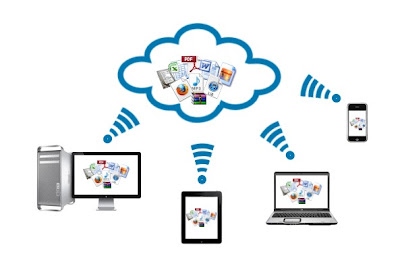
Cloud Computing. Get a free cloud Account.


Cloud computing is a technology that uses the Internet and central remote servers to maintain data and applications. Cloud computing allows consumers and businesses to use applications without installation and access their personal files at any computer with Internet access. This technology allows for much more efficient computing by centralizing storage, memory, processing and bandwidth.
A simple example of cloud computing is Yahoo email, Gmail, or Hotmail etc. You don't need a software or a server to use them. All a consumer would need is just an INTERNET connection and you can start sending emails. The server and email management software is all on the cloud (the Internet) and it is totally managed by the cloud service provider Yahoo , Google etc. The user gets to use the software alone and enjoy the benefits.

Get a free cloud account.

You can see cloud computing every where. If you are a gmail user,you might have experienced it because gmail is working based on Cloud computing.
Cloudo is a website which provides free cloud account in which you can do all the works just like working in a real computer desktop environment.Cloudo is easiest to Use Online Computer Opens For Developers
visit http://www.cloudo.com and sign-up for a free account.

Thursday, 26 April 2012

ownCloud 3 Makes Setting up and Accessing Your Own Cloud Dead Easy

We’ve all used, or at least heard of, services like Dropbox, Ubuntu One and Box, which allow us to store and sync our data in the cloud. This usually involves uploading our data to their servers (and purchasing more space, if we need to). It also comes with advantages like availability of our data from anywhere, and the ability to live-stream our media files when needed. But what if I tell you there is a cheaper and more privacy-oriented solution available, which offers similar features, and is also open source?

Monday, 23 April 2012

Distro Developers Need Dollars!

Sabayon Linux Donation Page
These are hard times, and a lot of people are hurting financially. Jobs and money are hard to come by, and many folks are just getting by. It turns out that even your favorite distro developers could use a few bucks to help them keep churning out new & updated distros for desktop use.

Sunday, 15 April 2012

How To Boot 10 Different Live CDs From 1 USB Flash Drive

09-booting-cc
Ever get the urge to try out a bunch of Linux distros at once? Maybe you’re hosting a Linux installation party. Here’s an easy way to get a bunch of Live CDs working from a single thumb drive.

Have You Ever Wondered How Your Operating System Got Its Name?


Have you ever wondered what “XP” stands for or where “Ubuntu” comes from? Some operating systems get their names from obvious places, but others need some explaining. Read on to find out where your favorite OS got its name.

Thursday, 12 April 2012

Clone a Hard Drive Using an Ubuntu Live CD

Whether you’re setting up multiple computers or doing a full backup, cloning hard drives is a common maintenance task. Don’t bother burning a new boot CD or paying for new software – you can do it easily with your Ubuntu Live CD.

Recover Data Like a Forensics Expert Using an Ubuntu Live CD

There are lots of utilities to recover deleted files, but what if you can’t boot up your computer, or the whole drive has been formatted? We’ll show you some tools that will dig deep and recover the most elusive deleted files, or even whole hard drive partitions.
We’ve shown you simple ways to recover accidentally deleted files, even a simple method that can be done from an Ubuntu Live CD, but for hard disks that have been heavily corrupted, those methods aren’t going to cut it. In this article, we’ll examine four tools that can recover data from the most messed up hard drives, regardless of whether they were formatted for a Windows, Linux, or Mac computer, or even if the partition table is wiped out entirely.

Create a Bootable Ubuntu USB Flash Drive

The Ubuntu Live CD isn’t just useful for trying out Ubuntu before you install it, you can also use it to maintain and repair your Windows PC. Even if you have no intention of installing Linux, every Windows user should have a bootable Ubuntu USB drive on hand in case something goes wrong in Windows.
Creating a bootable USB flash drive is surprisingly easy with a small self-contained application called UNetbootin. It will even download Ubuntu for you!
Note: Ubuntu will take up approximately 700 MB on your flash drive, so choose a flash drive with at least 1 GB of free space, formatted as FAT32. This process should not remove any existing files on the flash drive, but to be safe you should backup the files on your flash drive.
Put Ubuntu on your flash drive
UNetbootin doesn’t require installation; just download the application and run it.
sshot-1
Select Ubuntu from the Distribution drop-down box, then 9.10_Live from the Version drop-down box. If you have a 64-bit machine, then select 9.10_Live_x64 for the Version.

At the bottom of the screen, select the drive letter that corresponds to the USB drive that you want to put Ubuntu on. If you select USB Drive in the Type drop-down box, the only drive letters available will be USB flash drives.

Click OK and UNetbootin will start doing its thing. First it will download the Ubuntu Live CD.

Then, it will copy the files from the Ubuntu Live CD to your flash drive.

The amount of time it takes will vary depending on your Internet speed, an when it’s done, click on Exit. You’re not planning on installing Ubuntu right now, so there’s no need to reboot.

If you look at the USB drive now, you should see a bunch of new files and folders. If you had files on the drive before, they should still be present.

You’re now ready to boot your computer into Ubuntu 9.10!
How to boot into Ubuntu
When the time comes that you have to boot into Ubuntu, or if you just want to test and make sure that your flash drive works properly, you will have to set your computer to boot off of the flash drive.
The steps to do this will vary depending on your BIOS – which varies depending on your motherboard. To get detailed instructions on changing how your computer boots, search for your motherboard’s manual (or your laptop’s manual for a laptop).
For general instructions, which will suffice for 99% of you, read on.
Find the important keyboard keys
When your computer boots up, a bunch of words and numbers flash across the screen, usually to be ignored. This time, you need to scan the boot-up screen for a few key words with some associated keys: Boot menu and Setup. Typically, these will show up at the bottom of the screen.

If your BIOS has a Boot Menu, then read on. Otherwise, skip to the Hard: Using Setup section.
Easy: Using the Boot Menu
If your BIOS offers a Boot Menu, then during the boot-up process, press the button associated with the Boot Menu. In our case, this is ESC.

Our example Boot Menu doesn’t have the ability to boot from USB, but your Boot Menu should have some options, such as USB-CDROM, USB-HDD, USB-FLOPPY, and others. Try the options that start with USB until you find one that works.
Don’t worry if it doesn’t work – you can just restart and try again.
Using the Boot Menu does not change the normal boot order on your system, so the next time you start up your computer it will boot from the hard drive as normal.
Hard: Using Setup
If your BIOS doesn’t offer a Boot Menu, then you will have to change the boot order in Setup.
Note: There are some options in BIOS Setup that can affect the stability of your machine. Take care to only change the boot order options.
Press the button associated with Setup. In our case, this is F2.

If your BIOS Setup has a Boot tab, then switch to it and change the order such that one of the USB options occurs first. There may be several USB options, such as USB-CDROM, USB-HDD, USB-FLOPPY, and others; try them out to see which one works for you.
If your BIOS does not have a boot tab, boot order is commonly found in Advanced CMOS Options.
Note that this changes the boot order permanently until you change it back. If you plan on only plugging in a bootable flash drive when you want to boot from it, then you could leave the boot order as it is, but you may find it easier to switch the order back to the previous order when you reboot from Ubuntu.
Booting into Ubuntu
If you set the right boot option, then you should be greeted with the UNetbootin screen.

Press enter to start Ubuntu with the default options, or wait 10 seconds for this to happen automatically.
Ubuntu will start loading.

It should go straight to the desktop with no need for a username or password.

And that’s it! From this live desktop session, you can try out Ubuntu, and even install software that is not included in the live CD. Installed software will only last for the duration of your session – the next time you start up the live CD it will be back to its original state.
Download UNetbootin from sourceforge.net